


In a competitive FPS like CS2 (CS:GO), even the smallest advantage can decide the outcome of a round. A few extra frames, smoother aim, or faster system reactions can be the difference between winning or losing a duel. While skill and game sense ultimately determine your rank, your setup plays a bigger role than most players realize.
Many players grinded their way to the professional level without spending thousands of dollars on high-end gear. But don’t get it wrong: even with cheaper hardware, they still invested a lot of time optimizing every detail of their setup.
If your settings, hardware, or configuration aren’t optimized, you might be fighting your own system instead of your opponent. That’s exactly why this checklist exists. Go through it step by step, identify what’s holding you back, and fix those weak points so you can start playing at your true level.
Fix your internet connection
This one might seem obvious to some of you who already have it sorted out, but it’s still worth mentioning. A significant number of CS2 players still play on Wi-Fi, which can cause serious performance issues. High packet loss, lag spikes, and increased latency can sometimes make the game almost unplayable.
Even if you’re not teleporting around the map, a high ping can still affect your gameplay. Your shots may register later than expected, and your opponents may see you a fraction of a second earlier, giving them a small but important advantage.
Upload and download speeds don’t matter that much when playing CS2, because the game doesn’t use a lot of data. What really matters is the stability of your connection and your ping. The solution here is simple: instead of playing on Wi-Fi, connect your PC or laptop directly to your router using an Ethernet cable. This will make your connection significantly more stable, reduce latency, and eliminate most of the internet issues that can affect your gameplay.
But what if the router in your house is located far away from your computer?
I actually had this exact problem a few weeks ago after moving to a new apartment, since the router was in a completely different room from where I had my PC. At first, I tried using a wireless USB adapter and played over Wi-Fi, but the connection was terrible. I kept getting disconnected from the server every 4–5 rounds and experienced huge lag spikes in important moments where I would suddenly teleport across the map or stop moving entirely. Even when the game seemed to run normally, my shots didn’t register as well as I was used to.
I eventually fixed the problem by using a powerline adapter kit, which is usually 2–3 times more expensive than a wireless adapter, but in my experience it was worth every cent. If you’re not familiar with it, the concept is actually very simple: it turns your wall power outlets into network ports, allowing the internet signal to travel through your home’s electrical wiring.
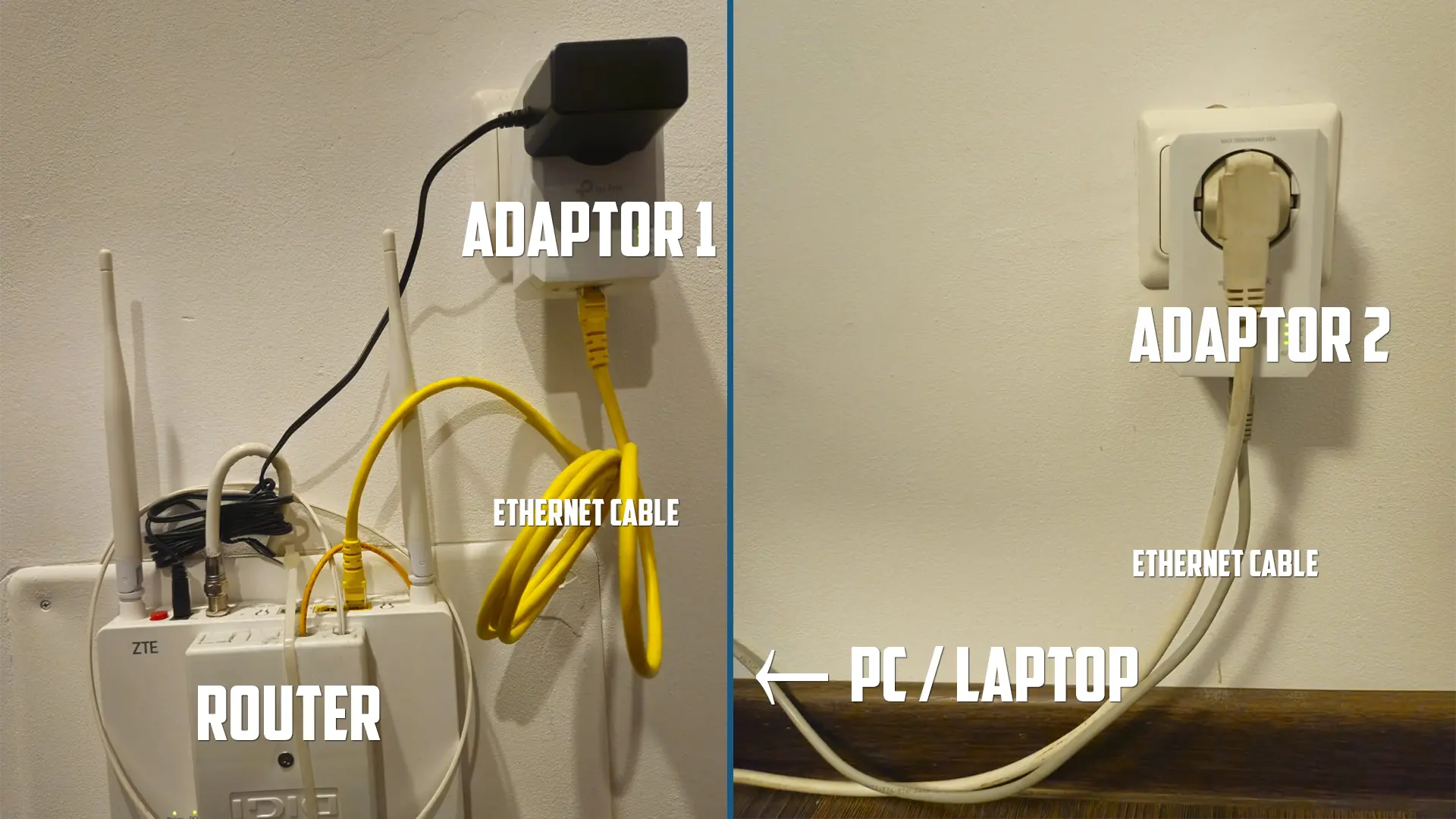
The kit usually comes with two adapters. The first one is plugged into a wall socket near your router and connected to it using an Ethernet cable. The second adapter is plugged into a power outlet in another room (on the same electrical circuit) and connected to your PC or laptop using another Ethernet cable, as shown in the image below.
That’s it! No more long cables across the house and no more packet loss or unstable connections during your games. As you might expect, the performance still depends on the quality of your home’s electrical wiring, and it can be slightly worse than a direct Ethernet connection from your router. However, it is still far more stable than a Wi-Fi connection, even if your electrical wiring isn’t perfect.
It worked wonders for me, and now I can enjoy a game of Counter-Strike without worrying about getting disconnected in the middle of a round. The game feels just as smooth as it did when I had a direct Ethernet connection. The only difference is that upload and download speeds are slightly lower compared to using a direct cable from the router. However, this doesn’t really matter for CS2, since the game doesn’t require much bandwidth anyway.
Why a Good Mouse Matters
In a game like Counter-Strike, where milliseconds decide who wins a duel, your mouse is one of the most important pieces of the gear. A poor-quality mouse can introduce sensor inconsistencies, input delay, or unstable tracking, all of which directly affect your performance.
You don’t need to spend hundreds of dollars on the best model, but you should look for the following characteristics when choosing a new mouse:
- A reliable optical sensor
- Low click latency
- A comfortable shape that fits your grip style
- A polling rate of 1000Hz: this is the standard for competitive play, but you could go for 2000-4000Hz if you have a high-end PC
If you’re not looking to spend too much money and aren’t sure what to choose, check out this guide on the best budget mouse for CS2. It breaks down some of the most solid and affordable options for competitive play.
How to Choose the Right Sensitivity
Now, this is where most people get it completely wrong. Using the same sensitivity as an insanely good player like donk won’t suddenly make you play like him. Sensitivity is highly personal, and your real goal is to find a value that allows you to track enemies smoothly, make small adjustments at long range, and flick comfortably onto targets.
Most competitive players use 400 or 800 DPI and adjust their in-game sensitivity from there, so it’s a good idea to start with one of those. While there are many tools that claim to help you find the perfect sensitivity, they should only be used as a starting point. From there, you should continue adjusting until you find the value you’re most comfortable and confident with over a long period of time.
A simple yet very effective rule is:
- If you constantly over-flick, your sensitivity is probably too high
- If you struggle to turn toward your target or feel restricted, it might be too low
Once you find a sensitivity that works for you, stick to it. Constantly changing it resets your muscle memory and will slow down your improvement.
Video Settings and FPS Optimization
In Counter-Strike, the goal isn’t to make the game look beautiful. It’s to make it run as smoothly and consistently as possible. If your graphics card isn’t particularly powerful, optimizing your settings becomes extremely important. By lowering certain graphics options, you can significantly increase your FPS, resulting in smoother gameplay and faster visual feedback during the game.
Here are some of the most important things to check:
- Display Mode: Always use fullscreen instead of windowed or borderless. Fullscreen mode gives the game direct control over your system resources and results in lower input latency
- Resolution: Using lower resolutions can increase your FPS. Many professional players use 4:3 stretched resolutions such as 1280x960 or 1024x768, because they make player models appear wider and easier to spot and aim at compared to 16:9
- V-Sync: While V-sync can remove screen tearing, it introduces additional input delay, which is why I recommend turning it off
- Graphics Quality: Most CS2 players keep their graphics settings on low or medium, as this reduces GPU load and helps them maintain a stable frame rate during intense rounds where a lot of utility is used
- Limit your FPS: Running the game at a slightly lower but consistent frame rate is better than having a generally high FPS that drops during gunfights or when there’s a lot of utility on the map. What I usually do is limit my FPS to a value about 10% lower than the average FPS my system can produce. For example, if my PC averages around 200 FPS, limiting the game to 180 FPS can reduce fluctuations. You can do this by enabling your developer console in the game (Settings -> Game -> Enable Developer Console -> Yes), opening it by pressing ~, and entering this command: fps_max value
- Extra optimizations: Keep your graphics drivers updated and close other applications that use CPU or RAM while running the game, including web browsers
If performance is still inconsistent after changing your settings, your GPU is likely the problem. Newer graphics cards are becoming more common among players, with the RTX 5070 seeing a sharp rise in usage in recent Steam Hardware Survey data, highlighting how quickly newer hardware is being adopted. If your system is starting to fall behind, upgrading your GPU can make a noticeable difference in overall smoothness and consistency.
Monitor
Now that you’ve optimized your video settings and are getting the most out of your frames per second, the next step is making sure you can actually see those extra frames. That’s why your monitor plays a huge role in how smooth and responsive the game feels.
When playing CS2, refresh rate is far more important than resolution or visual quality. A higher refresh rate means your screen updates more frequently, making movement appear smoother and helping you spot opponents faster while also making them easier to track. This allows you to react quicker and ultimately win more duels.
If you’re playing on a standard 60Hz monitor, your screen can only display 60 frames per second, even if your game is running at a much higher FPS. That’s why upgrading to at least a 144Hz monitor is extremely important, with 240Hz or higher being the ideal option.
Besides refresh rate, you should also look for a monitor with a low response time (ideally around 1ms) and low input lag, preferably in the 5–10 ms range.
Choosing the Right Headset
For CS2, you don’t really need an extremely expensive headset. What matters most is sound clarity and positional accuracy, not heavy bass or other effects. Most competitive players actually prefer simple stereo headsets, because they provide cleaner positional audio than virtual surround systems, making it easier to detect where sounds are coming from.
When choosing a headset, you should look for:
- Clear directional audio so you can tell where the footsteps and other sound cues are coming from
- Good stereo sound
- A good microphone, so your teammates can hear you clearly
- Comfort for long sessions
While sound is the most important source of information in the game, most gaming headsets will work perfectly fine for CS2. That’s why, if you’re on a limited budget, you shouldn’t overspend in this category. Instead, use that extra money to upgrade other parts of your setup.
Conclusion
At the end of the day, improving in CS2 isn’t only about practicing more hours. Your setup plays a huge role in how consistently you can perform. If your connection is unstable, your FPS is fluctuating, or your hardware is holding you back in any other way, you’ll always be fighting against those limitations.
The good news is that most of these problems are relatively easy to fix, often just by optimizing your current setup or slightly upgrading the part of your system that is holding you back. Once your setup is properly configured, you can focus on what truly matters: playing at your real skill level and climbing the ranks in CS2.